You can change your wedding website's colors in seconds with color themes: ready-made color combinations that restyle the whole page at once. Pick one and the entire site recolors instantly — and if you want exact colors, you can create your own theme too.
Pick a color theme
The Themes panel shows a gallery of ready-to-use color combinations: each card carries the theme's name and its colors.
- Go to your wedding website and open the editor.
- Click the Colors button in the editor sidebar (you'll see a small swatch with your page's current colors).
- In the Themes panel, click any card — for example Dreamy Botanical — and your whole website recolors instantly: backgrounds, text and decorative details.
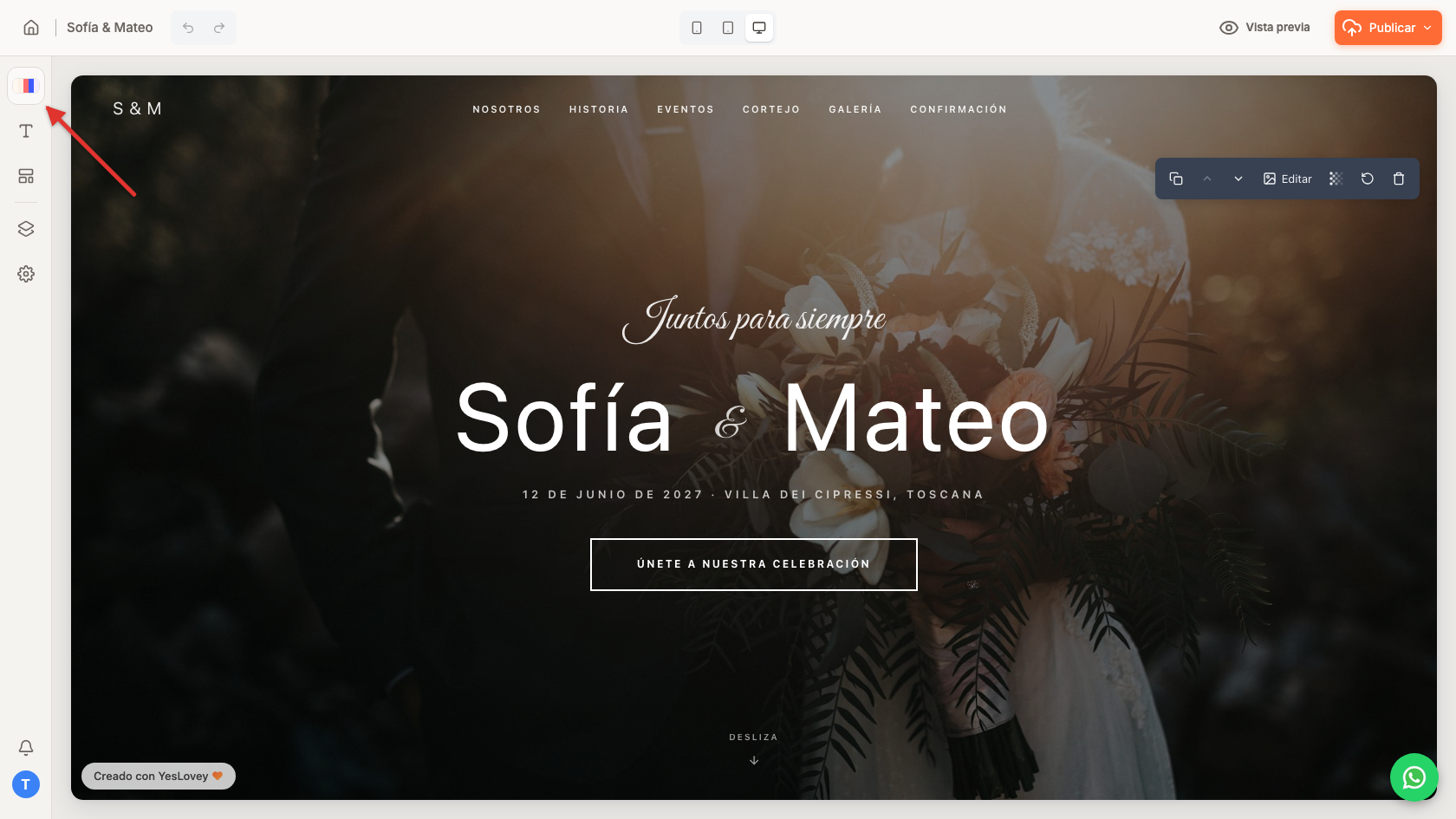
- Go to your wedding website and open the editor.
- Tap the Colors button in the floating bar at the bottom of the screen.
- The Themes panel slides up from the bottom: tap any card — for example Dreamy Botanical — and your whole website recolors instantly: backgrounds, text and decorative details.
Try as many themes as you like: the change is immediate and there's nothing to lose by experimenting. If you'd rather go back to your template's original colors, click Reset at the top of the panel.
Create your own color theme
Have very specific wedding colors? At the end of the Themes panel you'll find the Create Custom option:
- Click Create Custom.
- Enter a theme name (for example, "Our wedding").
- Choose each color in the palette: backgrounds, text and accents.
- Click Save Theme. Your theme appears in the panel alongside the others, ready to apply.
That way you can use the exact same tones as your invitations or decor.