If the ready-made color themes don't include your wedding colors, you can create your own palette and make your website look exactly the way you imagine it: for example, midnight blue and fir green. There are two ways to do it.
Duplicate an existing palette (the easy way)
Starting from a theme that already looks close to what you want is the quickest route: you only need to tweak a few colors.
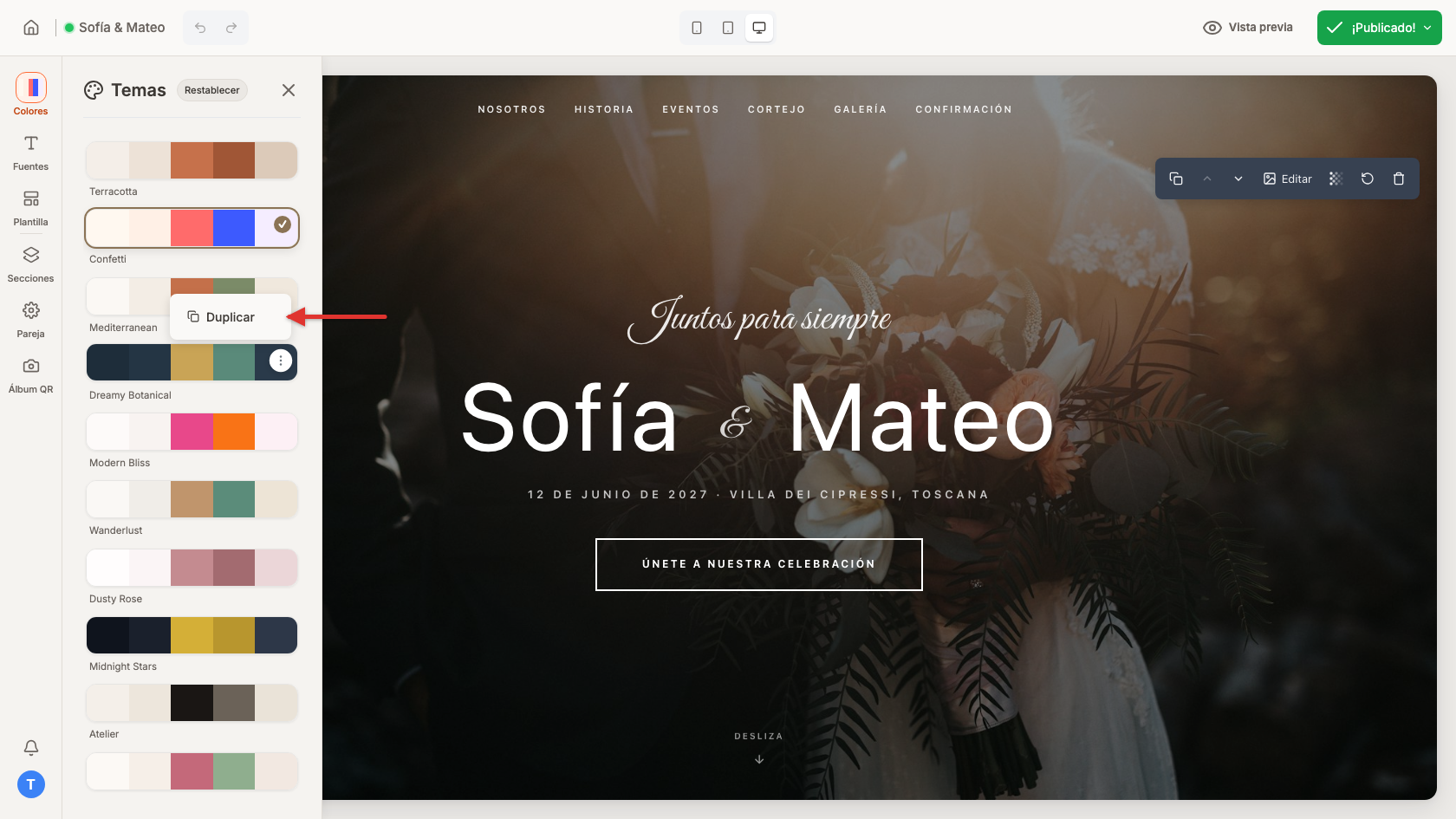
- Open your website's editor and click Colors in the sidebar.
- In the Themes panel, hover over a card and click the ⋮ button in its corner.
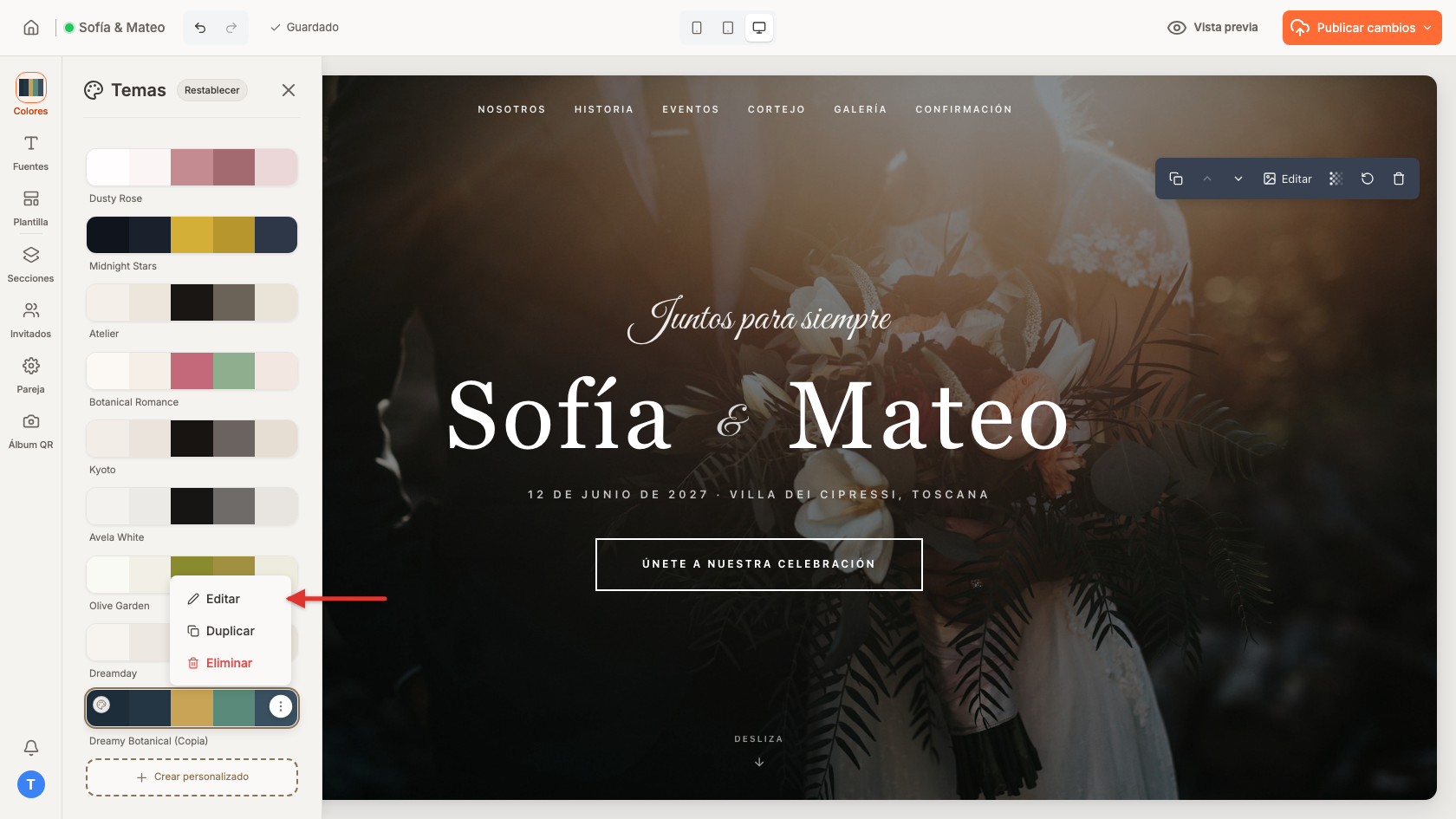
- Choose Clone. The copy keeps the same name with "(Copy)" added, for example "Dreamy Botanical (Copy)", and is applied to your website right away.
- Click ⋮ on the copy and choose Edit to change its colors.
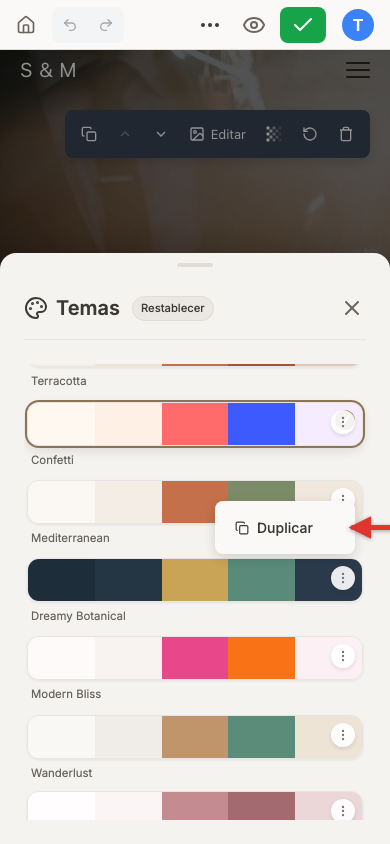
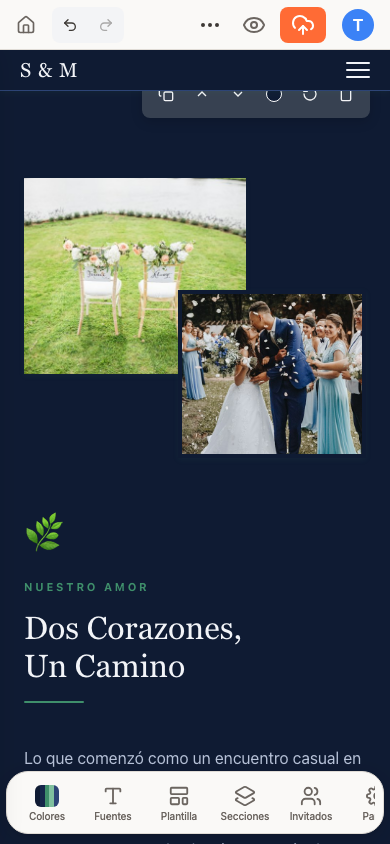
- Open your website's editor and tap Colors in the floating bar at the bottom.
- In the Themes panel, tap the ⋮ button in the corner of a card.
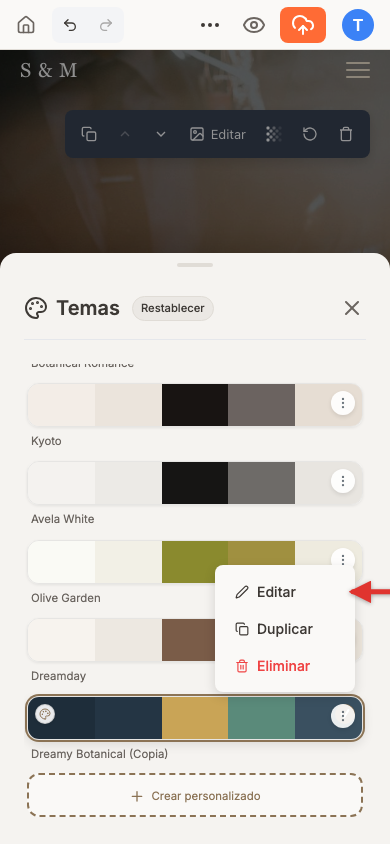
- Choose Clone. The copy keeps the same name with "(Copy)" added, for example "Dreamy Botanical (Copy)", and is applied to your website right away.
- Tap ⋮ on the copy and choose Edit to change its colors.
Create a palette from scratch
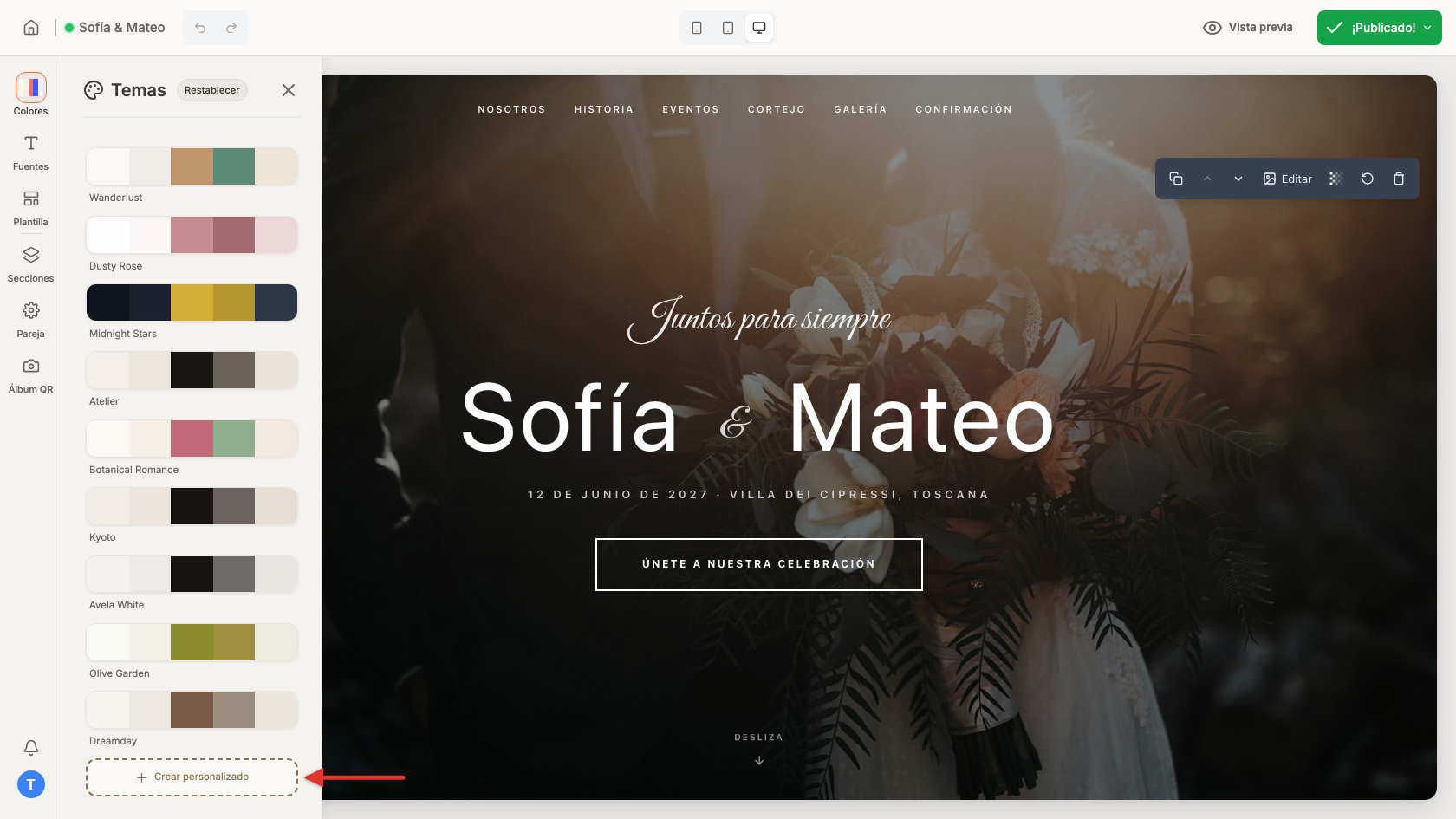
- Open Colors and scroll to the end of the Themes panel.
- Click the Create Custom card.
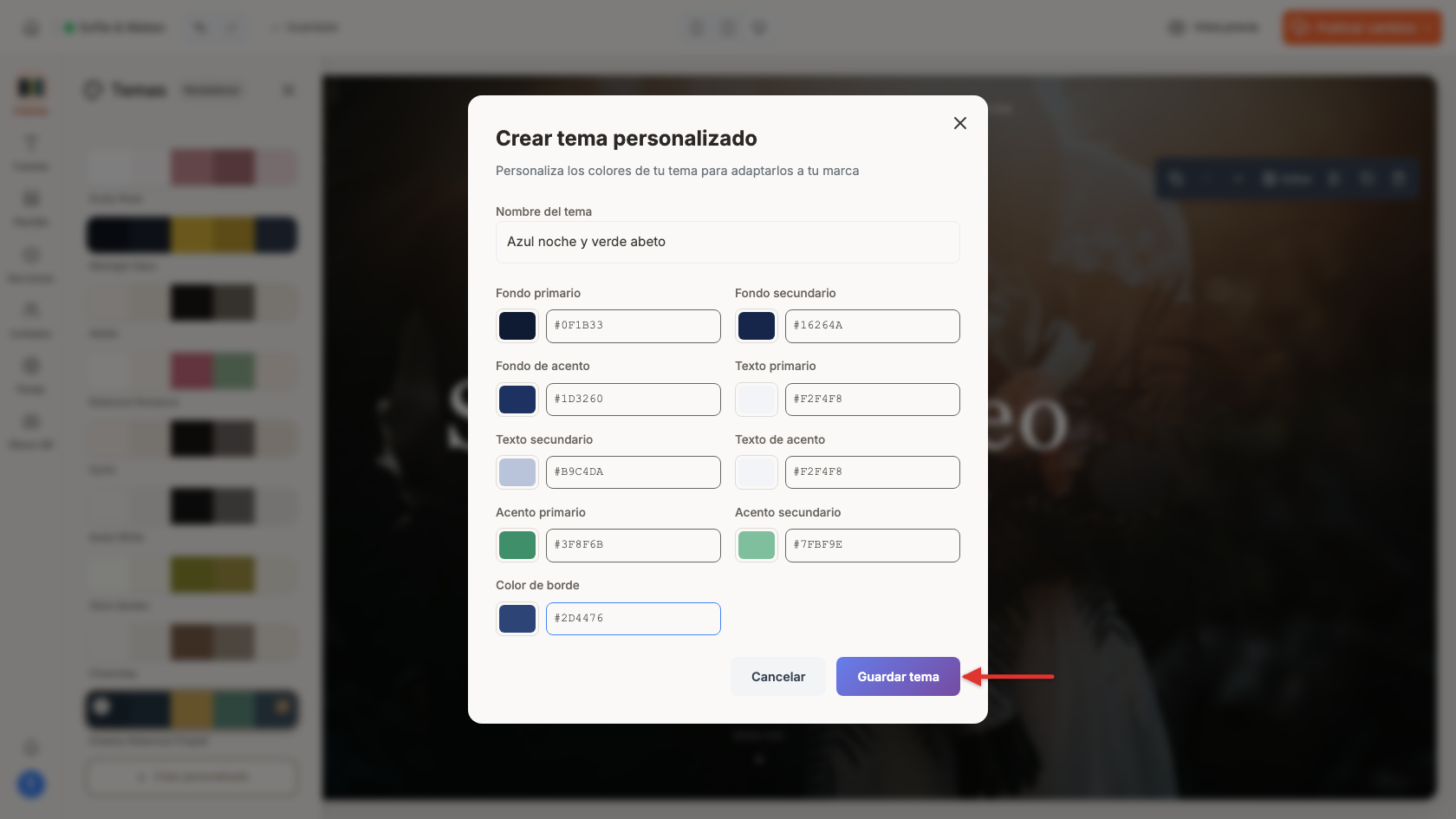
- Type a Theme Name, for example "Midnight blue and fir green".
- Choose the 9 colors (we explain them just below).
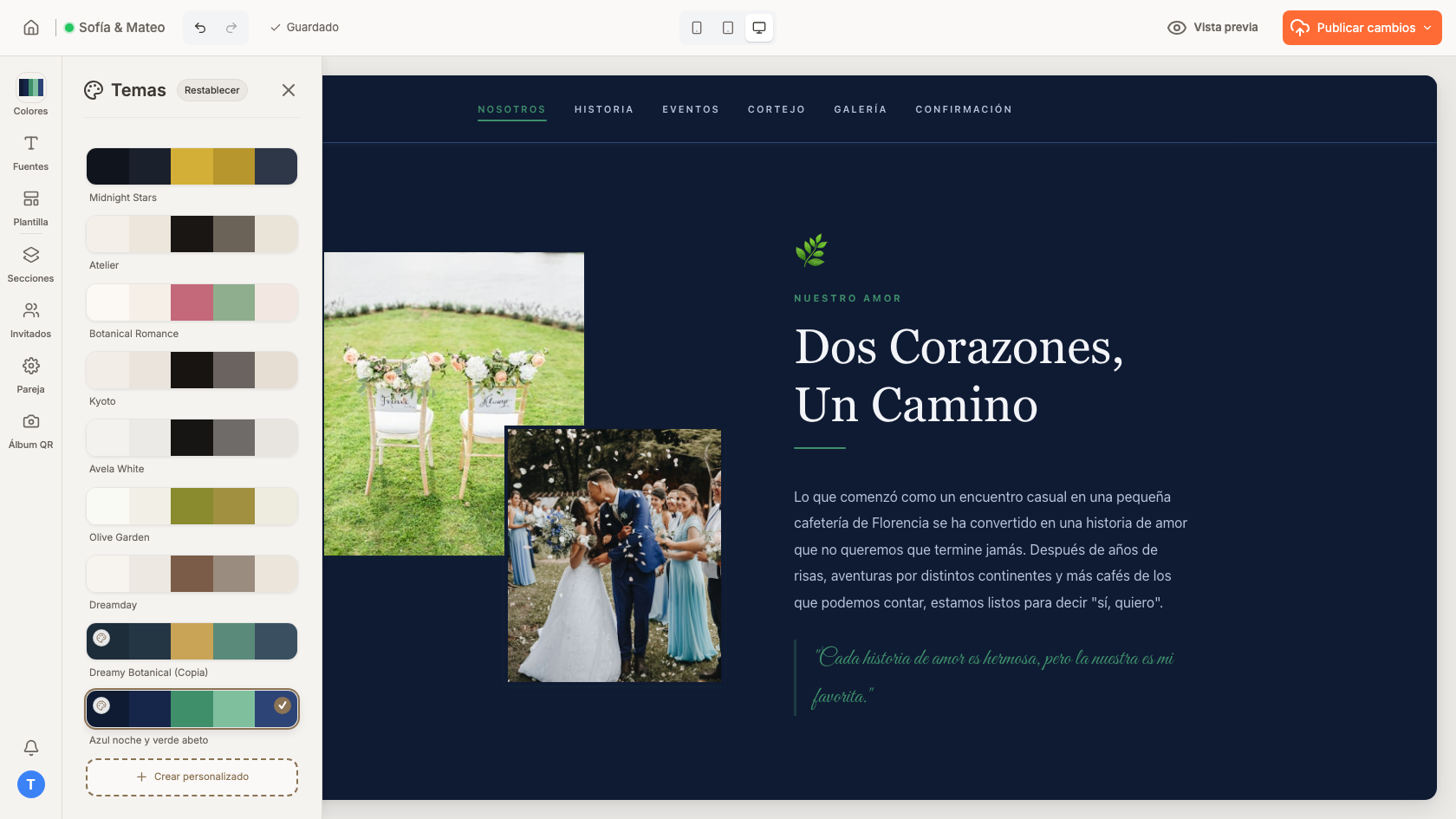
- Click Save Theme. Your palette is applied to your website and appears in the panel next to the others.
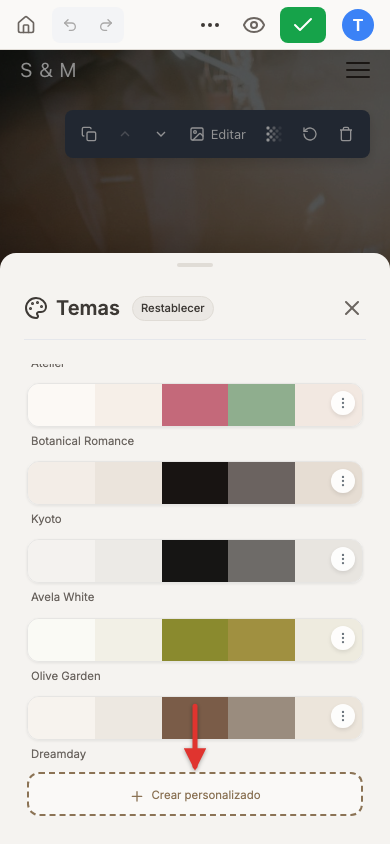
- Tap Colors in the bottom bar and scroll to the end of the Themes panel.
- Tap the Create Custom card.
- Type a Theme Name and choose the 9 colors.
- Tap Save Theme. Your palette is applied to your website right away.
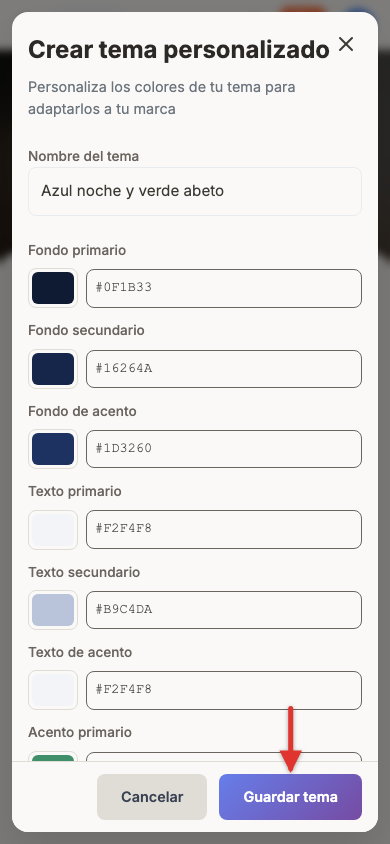
For each color you can use the color picker or type the hex code straight into the text box (for example #0F1B33): 6 characters preceded by #.
What each color changes
| Field | What it paints on your website |
|---|---|
| Primary Background | The overall page background. |
| Secondary Background | The background of the sections that alternate with the main one. |
| Accent Background | The background of cards and boxes, such as information blocks. |
| Primary Text | The main text on the page background. |
| Secondary Text | Quieter supporting text, such as subtitles and notes. |
| Accent Text | The text inside cards and boxes. |
| Primary Accent | Buttons, links and highlighted details. |
| Secondary Accent | Decorative details and secondary buttons. |
| Border Color | Lines, dividers and borders. |
Edit or delete your palette
Click ⋮ on your palette's card and choose:
- Edit: change the name or the colors, then click Save Theme again.
- Clone: make a copy so you can try variations without losing the original.
- Delete: remove it from the list. If it was the palette currently applied, your website falls back to a default theme.
Looking for more options? See how to change your colors and theme.