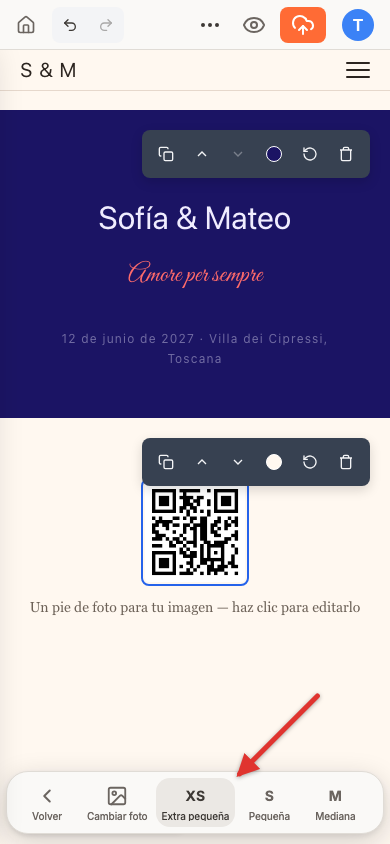
Want your guests to scan something straight from your website? A QR code is perfect for that: the link to the wedding WhatsApp group, your gift or payment link, or the party's collaborative playlist. You can add it as a regular image and size it so it looks small and neat. On a phone the steps are the same — panels open from the bottom bar.
Add an image section
- Open the sections panel and click Add section.
- In the catalog, choose Image — a new section appears with a sample image.
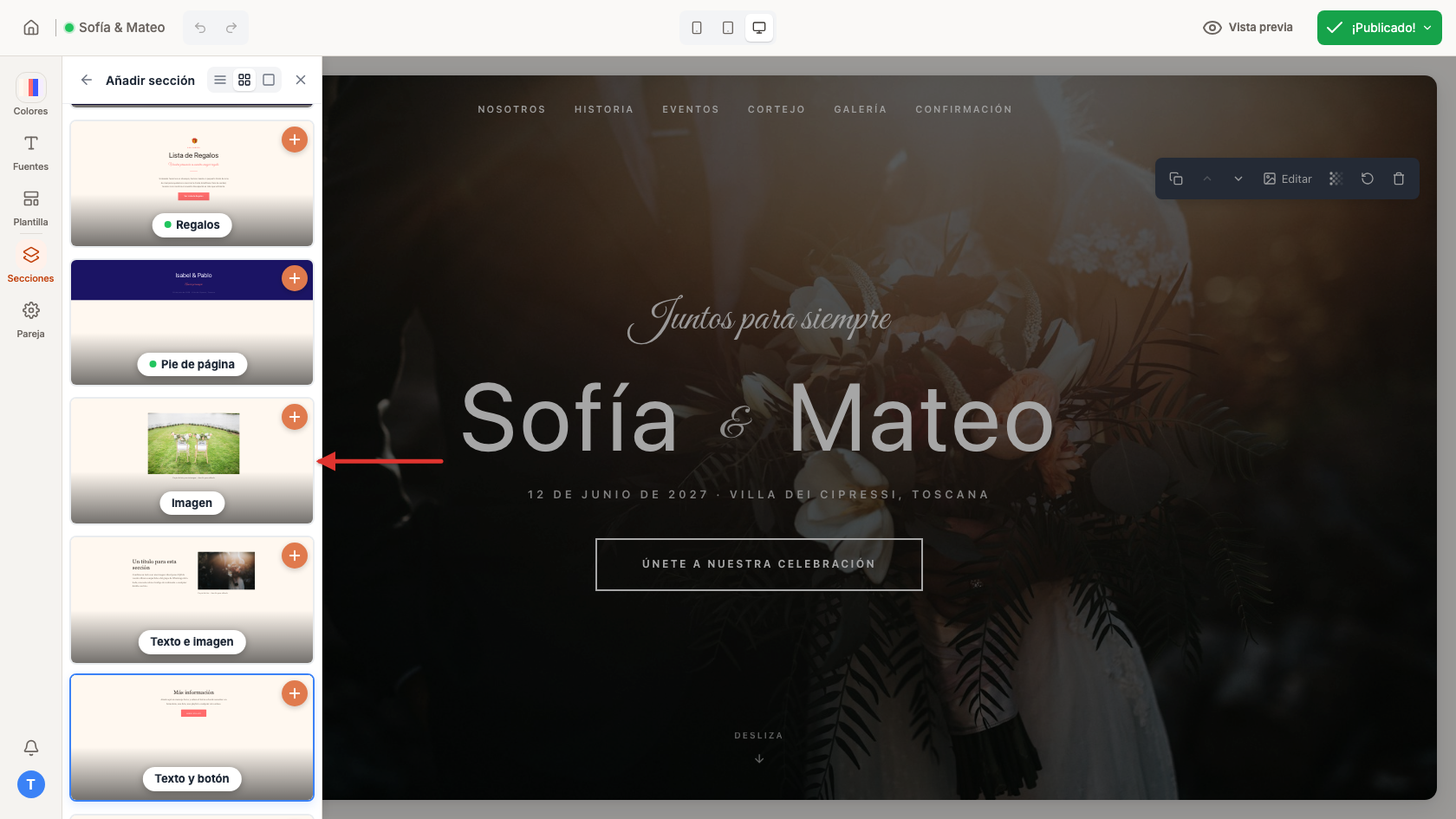
Upload your QR code
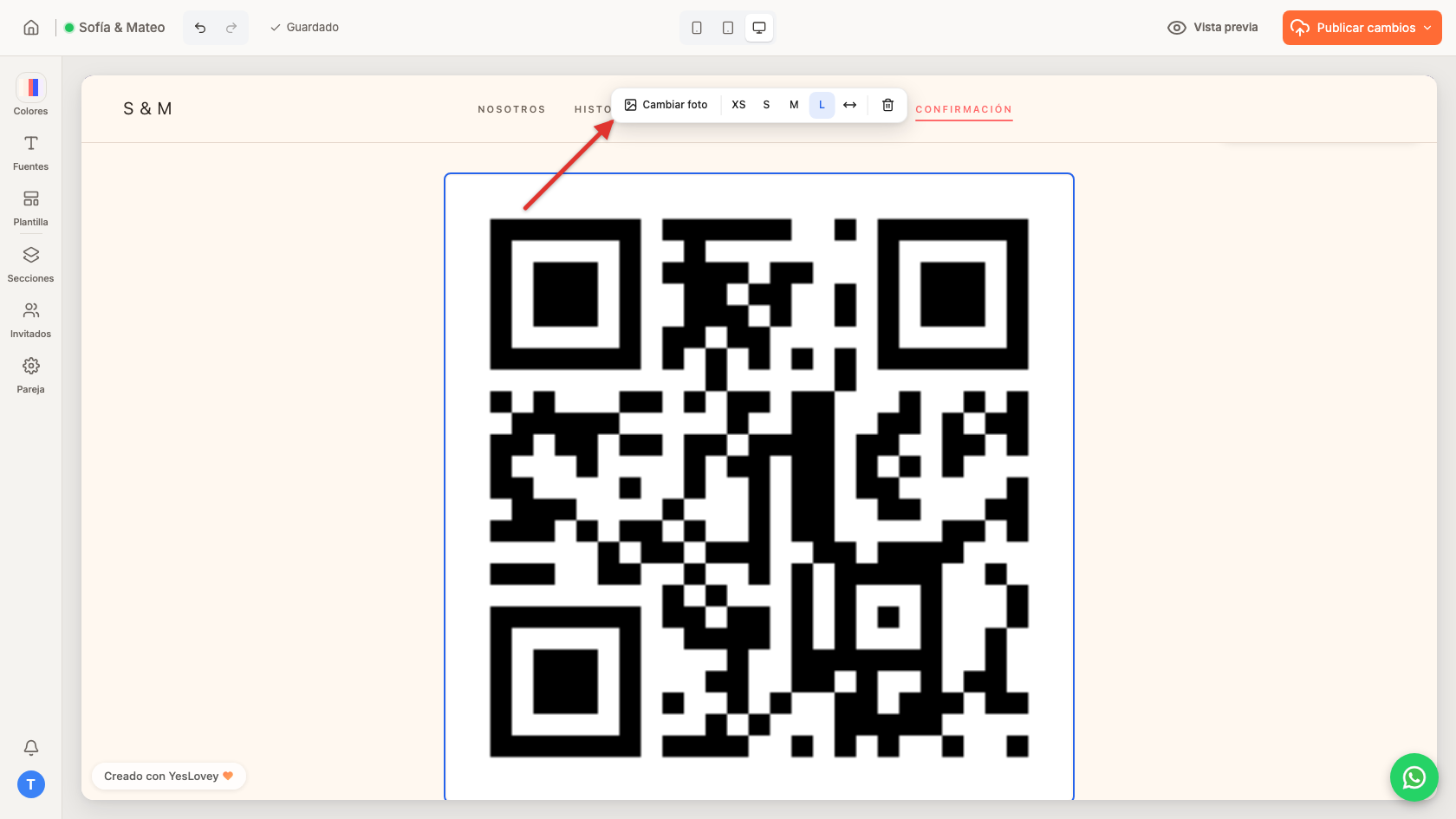
- Click the image, then click Change photo.
- Upload your QR code file from your device (or pick one you've already uploaded before).
Set the size
A QR code looks best small: it scans just as well and doesn't take over half the screen.
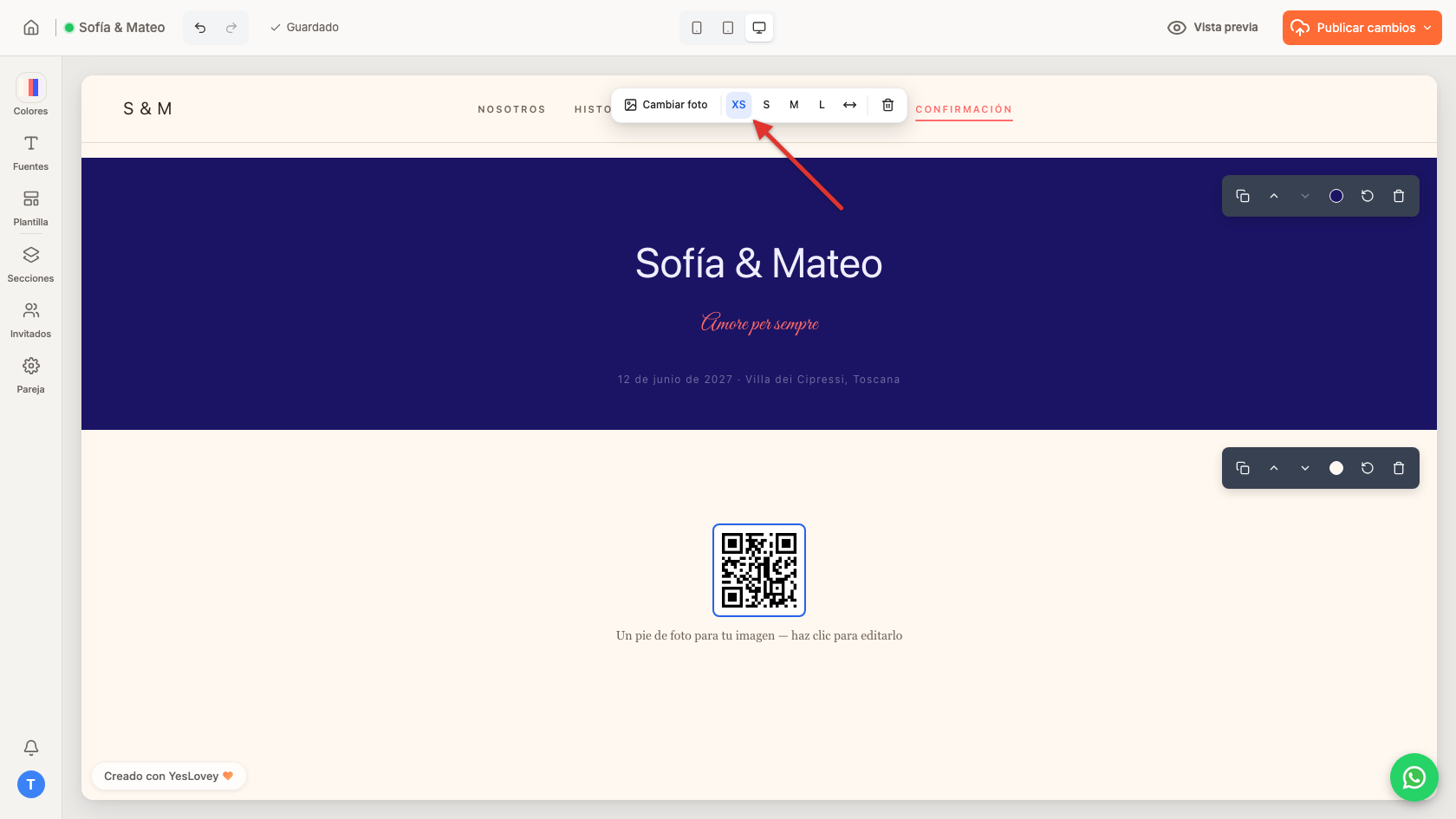
- With the image selected, its toolbar shows the sizes XS, S, M, L and full width.
- Click XS (Extra small), the ideal size for a QR code or a logo.
- Tap the image to select it; the sizes appear in the bottom bar.
- Tap XS (Extra small), the ideal size for a QR code or a logo.