While you're building it, your website is only visible to you. Publishing it gives it an address of its own and puts it online, ready to share with your guests.
Publish for the first time
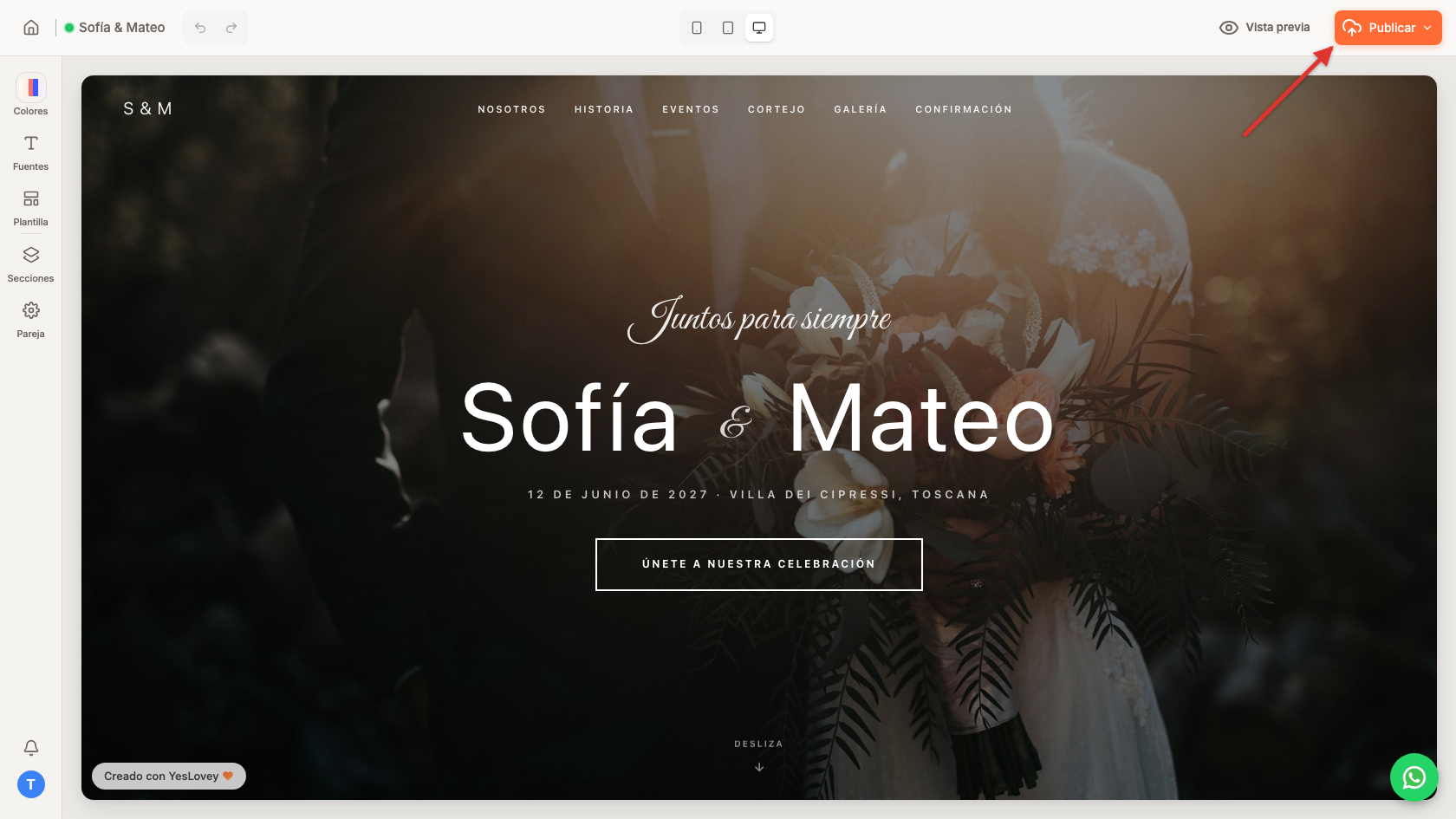
- In the editor, click Publish, top right.
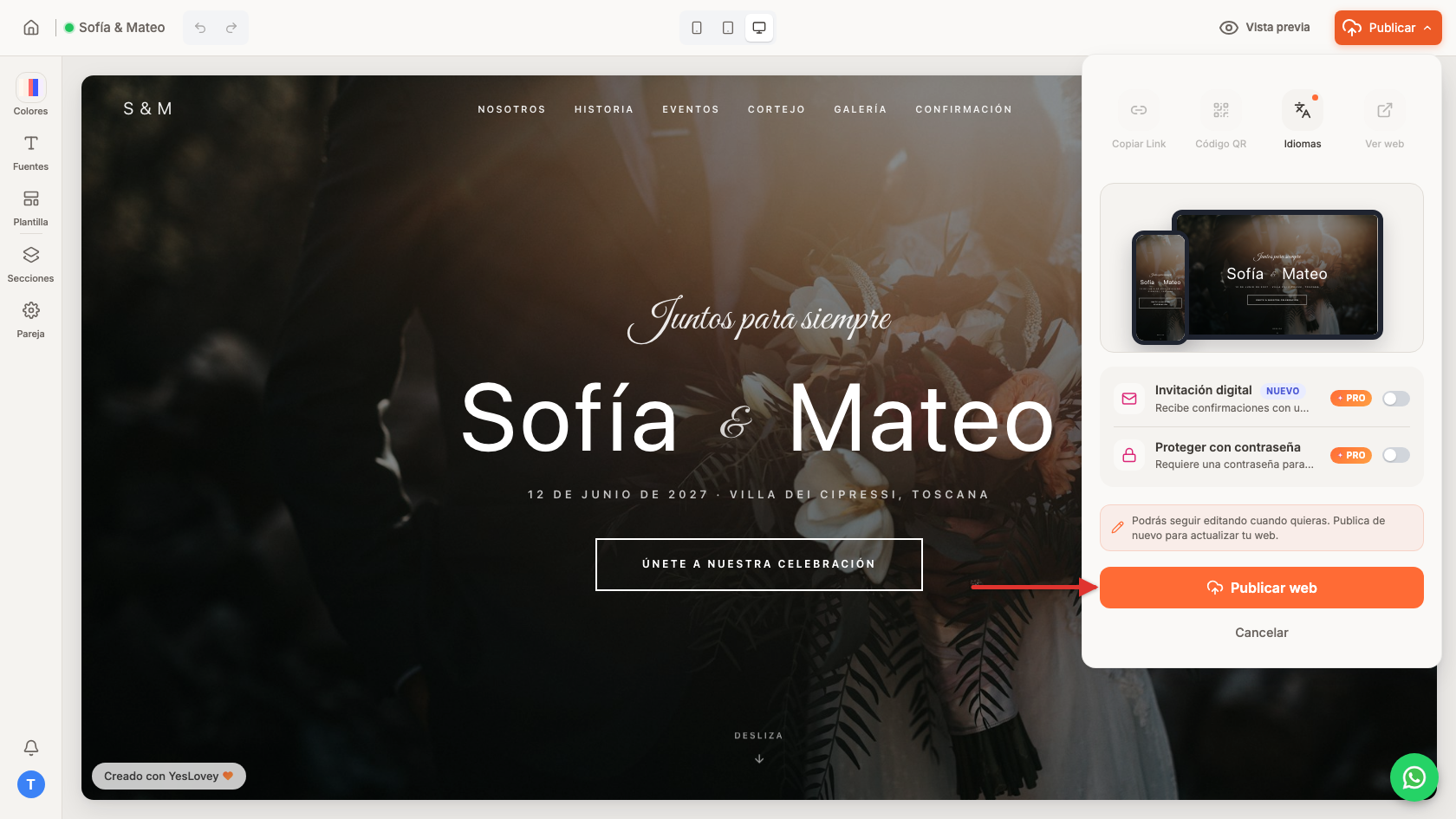
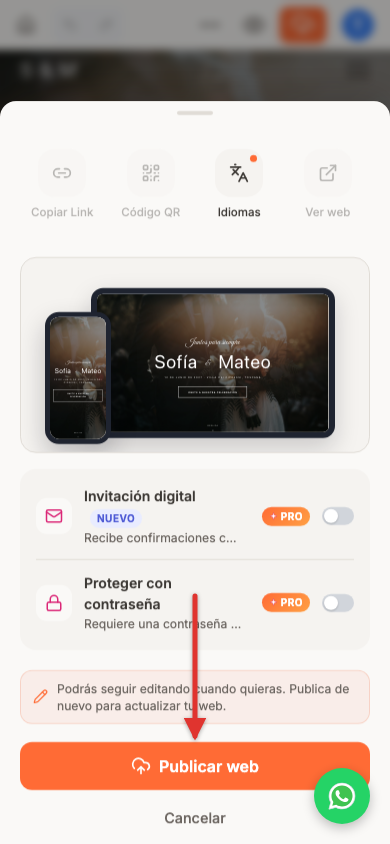
- The publish panel opens: it shows a preview of your website and most quick actions greyed out, because there's no link to share yet.
- Click Publish website.
Choose your website address
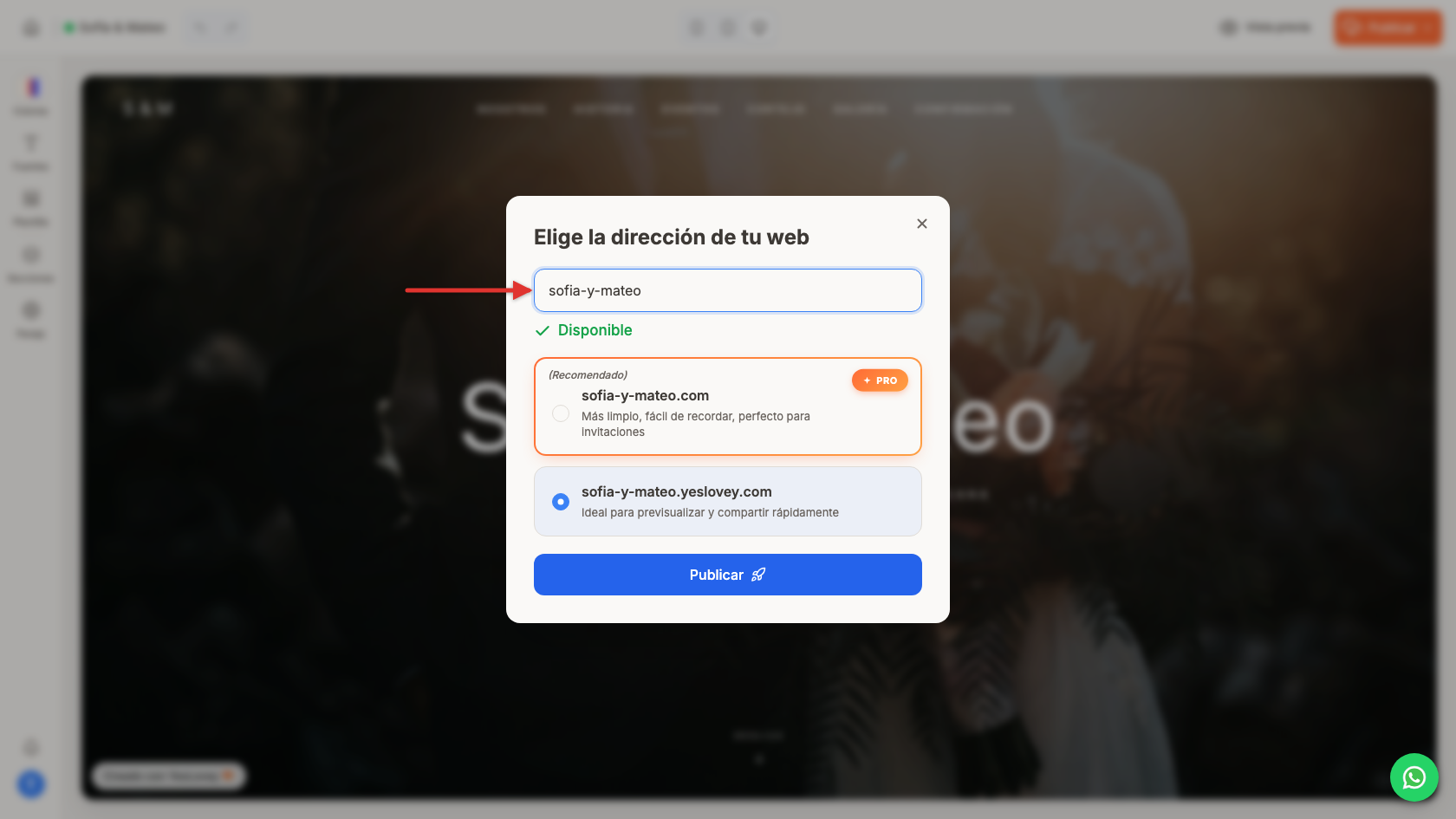
- Under Choose your website name, type the name you want (for example
mia-and-leo). It's checked as you type and tells you whether it's Available. - The free address on yeslovey.com is enough to share quickly. Your own .com domain comes with the Pro plan.
- Click Publish and wait a few seconds. You'll see Your website has been published 🎉, with a button to copy the link and another to View Website.
Your address and how to share it
Your website goes live at youraddress.yeslovey.com, using the name you chose. It's an ordinary link: send it on WhatsApp or print it on your invitations.
From then on, the publish panel shows your address at the top with a Live label, and keeps the essentials at hand: Copy link, Live view to open it exactly as your guests will see it, and QR code.
Publish the changes you make later
Once it's published, the button at the top turns green and reads Published!. You can keep editing: everything is saved automatically, but as a draft. What your guests see doesn't change until you publish again.
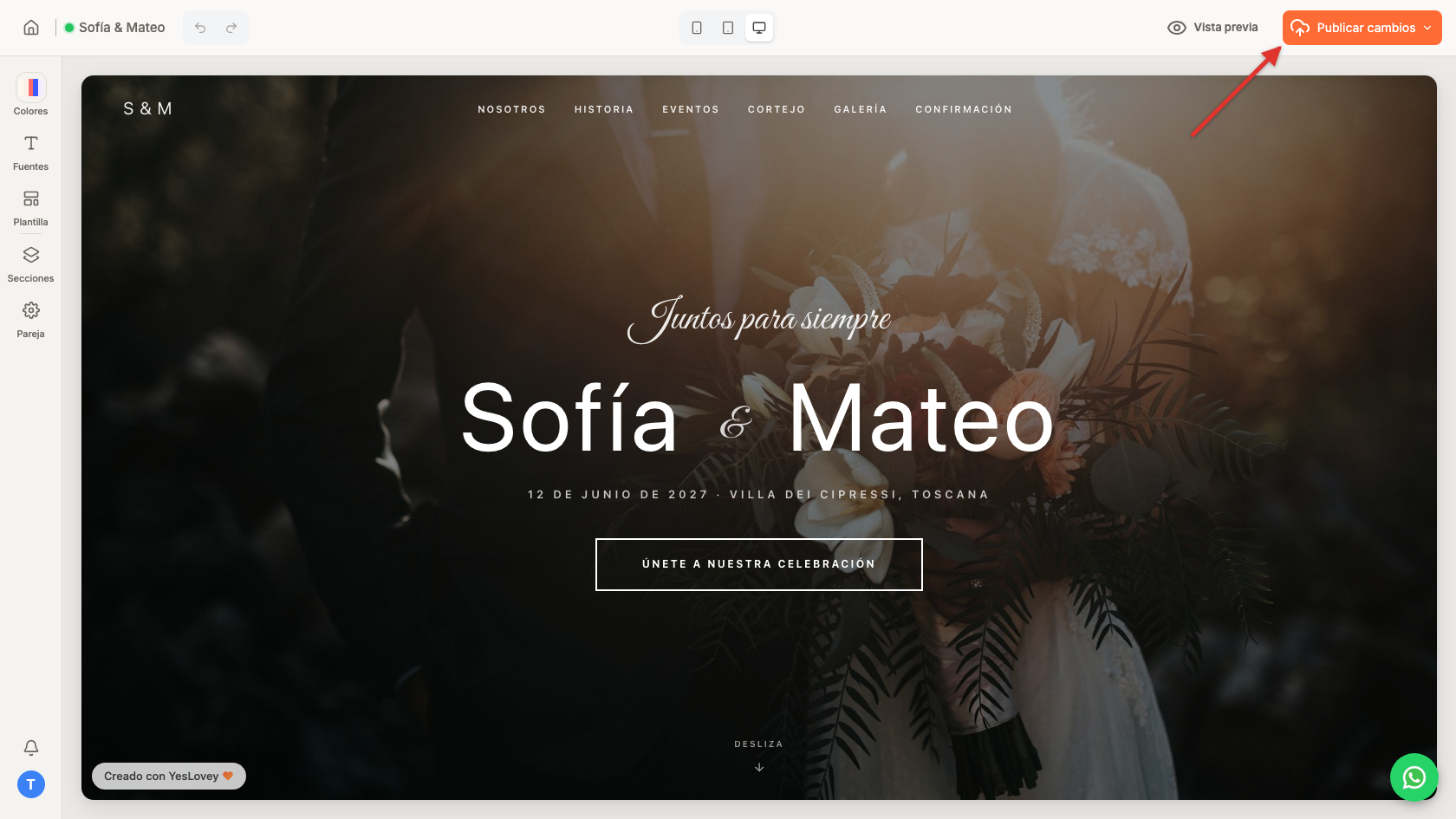
- Edit whatever you want. The button at the top switches to Publish Changes.
- Click it: the publish panel opens.
- Click Publish Changes in the panel. Your changes go live right away, with no address to choose again.
On mobile the steps are the same: the publish button shows only its cloud icon, and the publish panel slides up from the bottom.
Want your website to stop being visible? Click Unpublish in the publish panel and confirm; you can publish it again whenever you want.