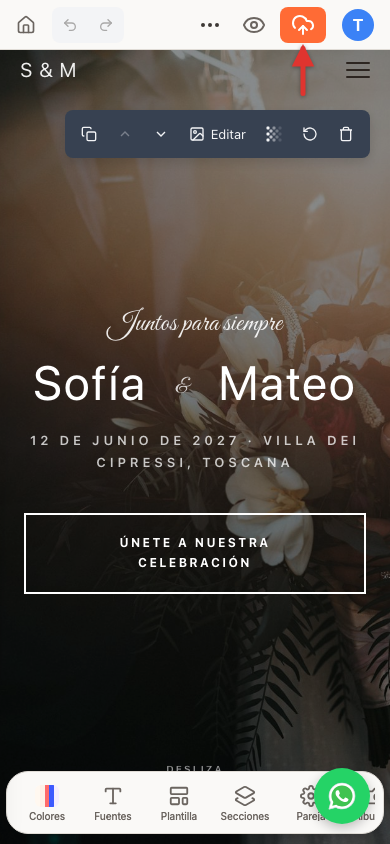
If you just edited something and it's not showing up where you expected, it's probably not a bug: there are two versions of your website (the one you edit and the one your guests see), and a few things behave differently inside the editor. Here's what's going on in each case.
Where your changes go as you type
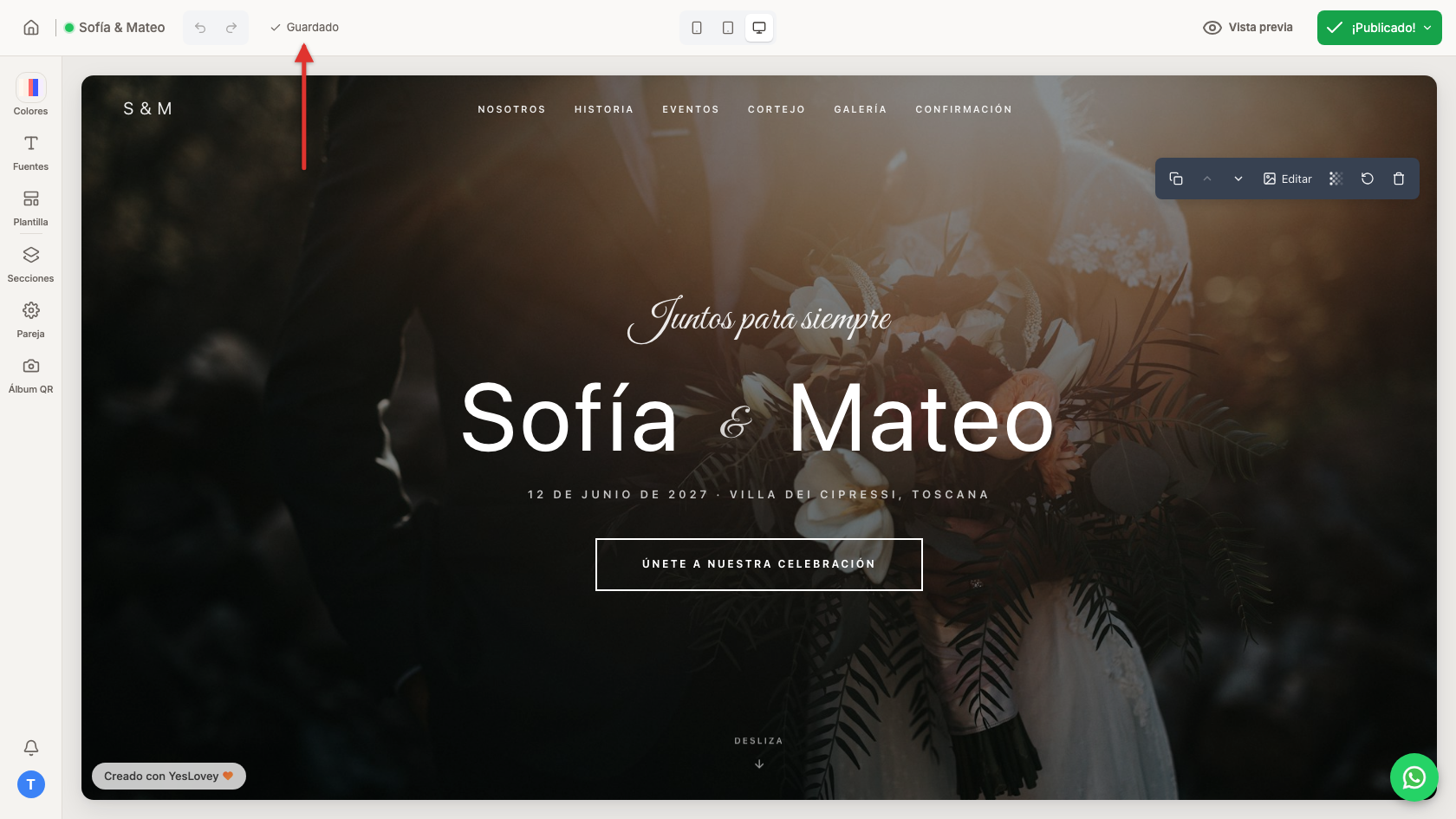
You don't need to save anything by hand: every change is saved on its own, a few seconds after you stop typing or moving something. At the top left, next to your website's name, you'll see Saving... while it's working and Saved once it's done.
Preview vs published website: who sees what
What you're editing is a draft — only you see it. Your guests see the version you last published, even while you keep editing on top of it. These are two different things:
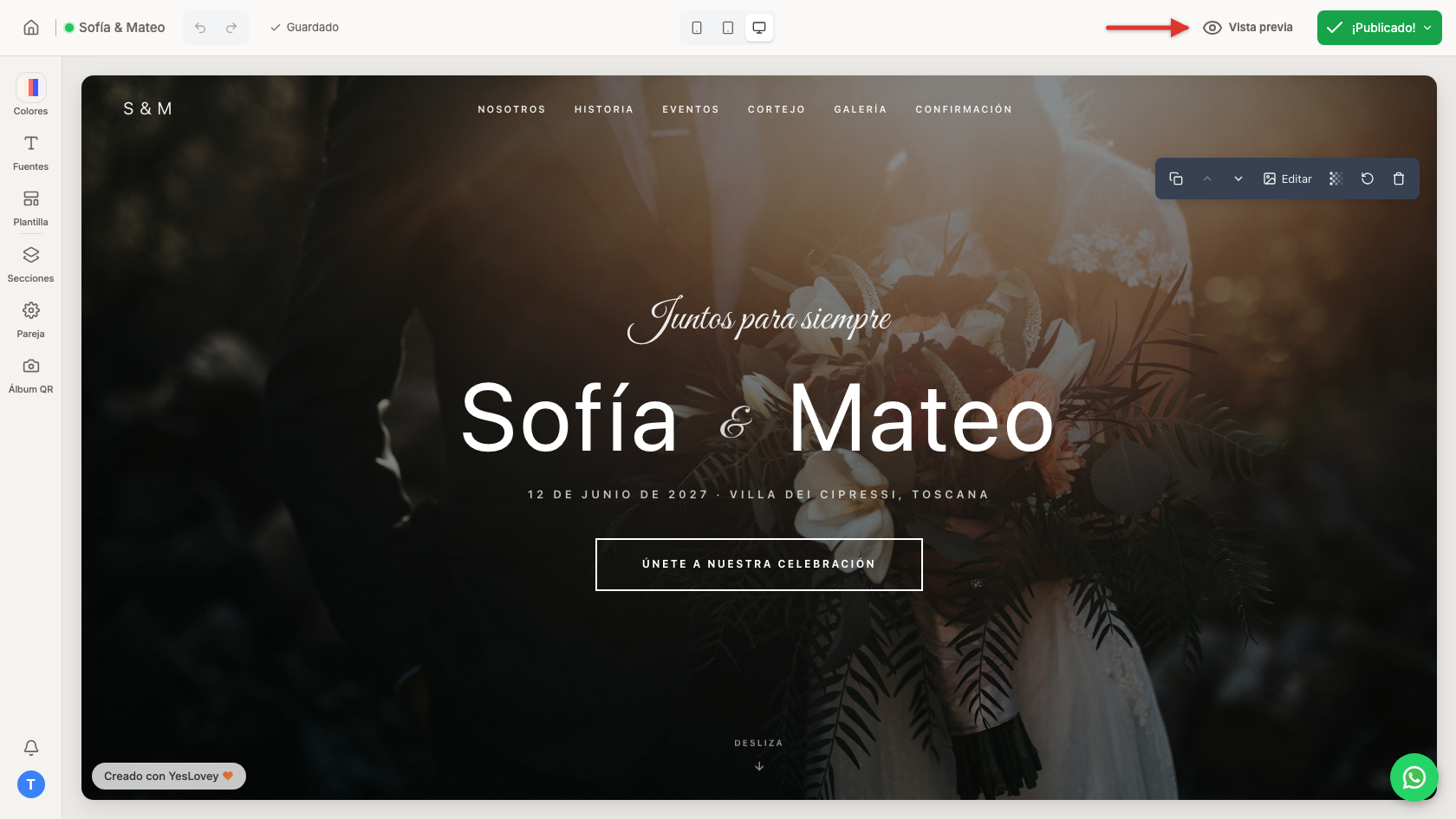
- The Preview button (the eye icon) shows your draft in fullscreen — but it's still the draft.
- Clicking Publish (or Publish Changes) opens a panel with a View Website link: that one actually opens the real address your guests get.
Links don't open while you're editing
It's normal for a link not to respond inside the editor: it's deliberately disabled so you can select text without navigating away. Open Preview to check it for real — there it's active. Your RSVP form, though, stays a rehearsal even inside Preview (you'll see a notice that nothing was saved); test it for real once it's published.
Publishing your changes
Saving and publishing are two different things: everything is saved on its own as a draft, but your guests don't see anything new until you publish. The full guide, with every step, is at publish your wedding website.
On your phone
On your phone, the Saving... / Saved notice doesn't show in the top bar, but autosave keeps working exactly the same. The eye icon (Preview) is still up there:
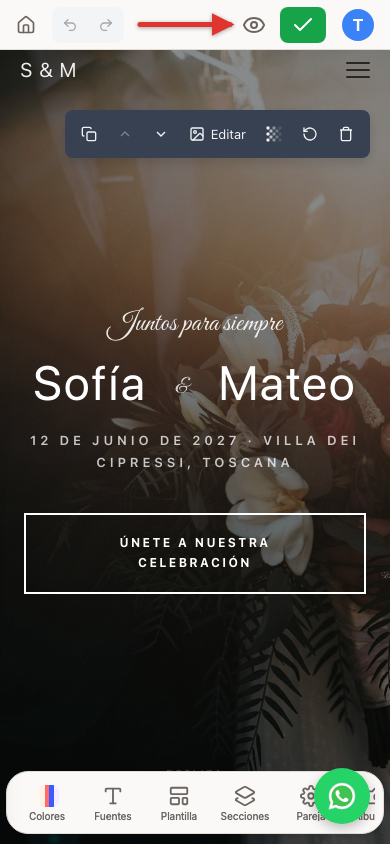
Next to it, between the eye and your avatar, sits the publish button: an orange cloud if there are unpublished changes, a green check if everything's already published.